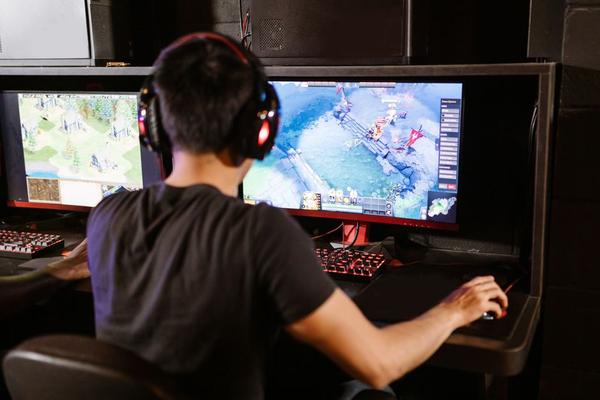
Choosing a gaming monitor is less about the largest number on a specification sheet and more about building a balanced setup. A 4K screen can look crisp, but it may be a poor match for a graphics card struggling to maintain smooth frame rates. Likewise, a 360Hz display offers limited value if your favourite games rarely exceed 100 frames per second. This gaming monitor guide explains the specifications that affect what you see and feel.
Match the Monitor to Your Games and PC
Start with what you play. Competitive shooters reward clear motion and low delay; cinematic adventures benefit from detailed images and deep contrast. If the same screen handles office work, text clarity and comfortable viewing matter too. Check independent benchmarks for your graphics card at your intended resolution. Average frame rates are useful, but demanding scenes and frame-time consistency deserve attention.
Choose a Sensible Gaming Monitor Resolution
1080p, 1440p and 4K compared
Gaming monitor resolution determines the number of pixels displayed. Full HD, or 1920 × 1080, is relatively easy to drive and works well for budget systems or competitive play, particularly around 24 inches. At 27 inches, 2560 × 1440 offers noticeably sharper text and game details without the demands of 4K. A 3840 × 2160 monitor, often around 32 inches, suits players who prioritise fine detail and have a capable graphics card.
Size matters alongside resolution. A large 1080p screen can reveal individual pixels from a normal desk distance. Meanwhile, 4K has roughly 2.25 times as many pixels as 1440p, increasing graphics workload. That ratio does not predict an exact FPS drop, but it explains why a resolution upgrade can require a substantial GPU upgrade too.
Understand Monitor Refresh Rate
Monitor refresh rate, measured in hertz, describes how frequently a screen can update. At 60Hz, an update occurs every 16.7 milliseconds; at 144Hz, every 6.9 milliseconds. Faster refreshing can make camera movement smoother and controls feel more responsive when the computer supplies enough frames.
For many gamers, 144Hz to 180Hz offers an excellent improvement over 60Hz. Moving from 165Hz to 240Hz brings smaller gains, though competitive players achieving consistently high frame rates may appreciate them. A 240Hz monitor does not make a game run at 240fps: the PC or console still determines the frame rate. Compare real motion clarity instead of treating the highest advertised figure as an automatic winner.
Response Time Is Not Input Lag
Response time measures how quickly pixels change between shades. Slow transitions can leave blurry trails behind moving objects even on a high-refresh-rate screen. Input lag measures the delay between receiving a signal and beginning to display it. Both matter for gaming, but they describe different problems.
Be wary of a marketed 1ms response time. This may represent a best-case transition or an aggressive overdrive setting that produces bright or dark halos around moving objects, known as inverse ghosting. Seek independent measurements across multiple refresh rates. A display that handles motion well at 165Hz but smears noticeably at 70Hz may frustrate players of demanding games.
IPS, VA and OLED: Which Panel Should You Buy?
IPS for versatility
IPS LCD monitors generally offer wide viewing angles, consistent colours and good motion performance. They are practical all-rounders for mixed gaming and work. Their typical weakness is relatively low native contrast, making blacks look greyish in dark rooms.
VA for stronger native contrast
VA LCD monitors often display deeper blacks than typical IPS models, adding atmosphere to darker games. Some, however, show noticeable dark-level smearing during movement. Individual models vary enough that hands-on testing is more revealing than the panel label.
OLED for contrast and fast pixel transitions
OLED provides pixel-level light control, excellent black levels and exceptionally fast transitions. It can look superb in cinematic and competitive games. Trade-offs include higher prices, possible permanent image retention from prolonged static elements, and differences in text clarity and bright-room performance. Check the warranty if you also use the screen for extended office sessions.
Why Adaptive Sync Is Worth Checking
Adaptive sync, also called variable refresh rate or VRR, allows a compatible display to adjust refresh timing to match incoming frames. This can reduce screen tearing and some stutter when a game’s performance fluctuates. Look for supported technologies such as AMD FreeSync, NVIDIA G-SYNC compatibility or applicable VRR standards, and confirm they work with your graphics card and chosen connection.
Consider a midrange gaming PC that runs a demanding game at 1440p between 70 and 110fps. A well-performing 165Hz screen with VRR can deliver a smoother-feeling experience through those fluctuations than a fixed-refresh display. Check reviews for VRR flicker, limited operating ranges and whether motion remains clean at lower frame rates.
Look Beyond the Headline Specifications
HDR performance
HDR should create convincing bright highlights, dark shadows and richer colour, not merely accept an HDR signal. Some inexpensive monitors advertise HDR but lack the contrast, brightness or local dimming needed for a dramatic improvement. OLED and capable mini-LED monitors can perform much better, although independent HDR tests remain essential.
Connections and comfort
Confirm the exact resolution, refresh rate and VRR capabilities available through each HDMI or DisplayPort input. Version labels alone do not guarantee every feature or bandwidth level. Console players should check support for the console’s intended 120Hz and VRR modes; PC players should verify graphics card outputs and cable requirements. Consider stand adjustability and VESA mounting support, too.
How to Compare Your Shortlist
Choose a budget, preferred screen size and resolution first. Then compare independent reviews for measured response times, overshoot, input lag, contrast, HDR quality and VRR behaviour. Look at 60Hz and 120Hz results as well as maximum refresh rate, particularly if you use more than one gaming device.
If you are unsure where to spend, explore a graphics card performance guide to judge suitable resolutions, a 144Hz versus 240Hz comparison for motion priorities, and a PC gaming desk setup guide for positioning and cables. These related decisions help prevent a premium monitor from being held back by the rest of your setup.
Frequently Asked Questions
Is 1440p better than 1080p for gaming?
It is sharper at similar screen sizes, especially around 27 inches, but requires more graphics power. Choose 1080p when lower cost or exceptionally high frame rates matter most.
Do casual gamers need 240Hz?
No. A good 144Hz to 180Hz monitor already feels responsive. Faster options make more sense for competitive games running at consistently high frame rates.
Is OLED worth the extra money?
OLED’s contrast and motion clarity can justify the price for enthusiasts, but consider burn-in risk, bright-room use, office tasks and warranty coverage before buying.
Can a new monitor increase FPS?
No. The graphics hardware renders frames. A monitor can show more of them and improve presentation, but it cannot make a computer produce frames faster.
Choose a Balanced Upgrade
The best monitor pairs an appropriate resolution with the frames your hardware can deliver, a useful refresh rate and proven motion performance. Verify adaptive sync, connectivity and real HDR behaviour before paying for extras. When those parts work together, the result matters far more than an impressive specification printed on the box.